


How to Give Delegate Access With Godaddy
Need to give someone access to your GoDaddy account? You can easily assign delegate access through GoDaddy’s built-in features, allowing others to manage certain aspects of your account safely. Here’s how to do it without sharing your full login details.
Step 1: Log In to GoDaddy
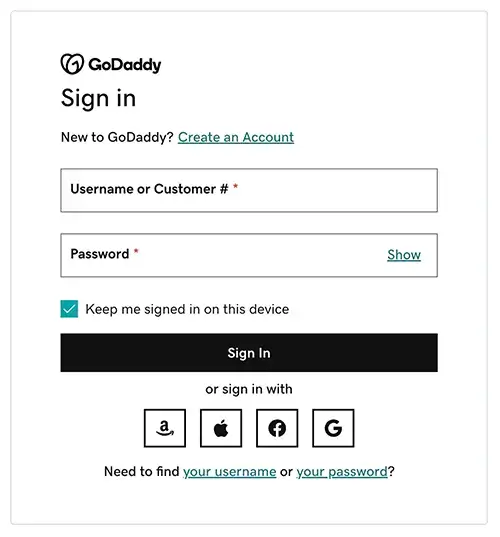
Before you can manage delegate access, you must first log into your GoDaddy account. Visit the GoDaddy website and click on the Login button located at the top right corner of the homepage. Enter your username and password in the provided fields.
Step 2: Navigate to Account Settings
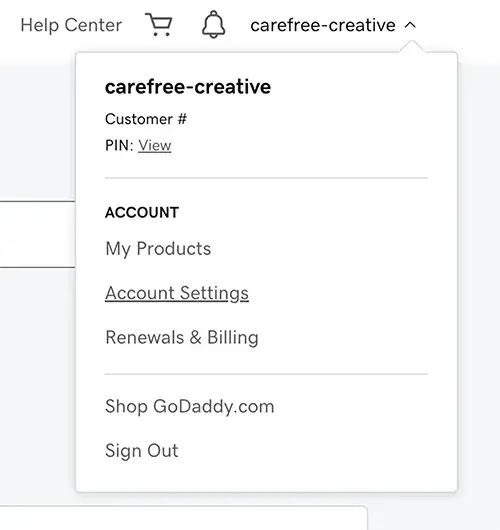
Once you are logged into your GoDaddy account, locate the user profile icon or your name at the top right corner of the page. Click on this to open a dropdown menu. From this menu, select Account Settings. This will take you to a dashboard where you can manage various aspects of your account, including delegate access.
Step 3: Go To Your Delegate Access Page
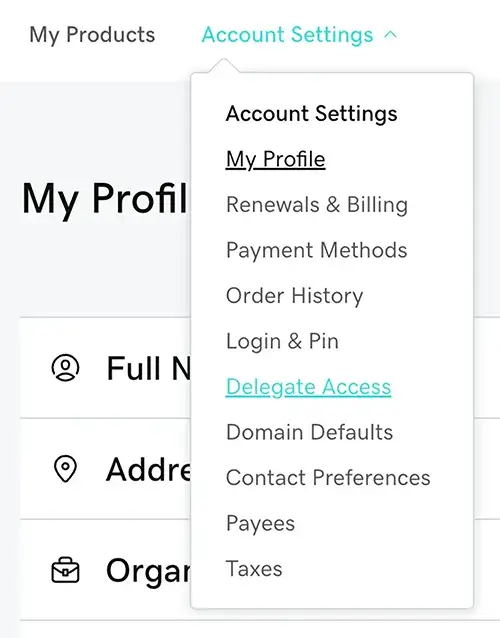
Once your logged in and in Account Settings, navigate to the Delegate Access section under your account settings.
Step 4: Inviting a Delegate
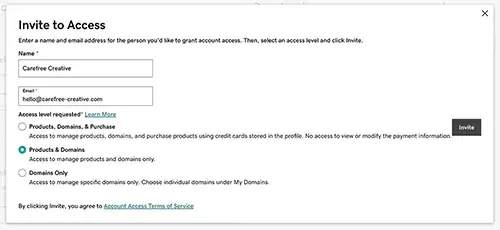
Click on ‘Invite to Access’ and enter the delegate’s name and email address.
Note: You’ll need to know the email address associated with their GoDaddy account.

Step 5: Setting Permissions
Choose the appropriate level of access for your delegate. GoDaddy offers various levels. Each level offers different permissions, so choose one that aligns with your needs:
- Products, Domains, & Purchase: This level allows delegates to manage products and domains, and make purchases on your behalf.
- Products & Domains: Delegates can manage products and domains, but cannot make purchases.
- Domains Only: This level restricts delegates to domain management only.
- Accounts Connection Only: The most limited access, allowing delegates to only view connections between your account and their account.
Step 6: Sending the Invitation
After selecting the access level, send the invitation. The delegate will receive an email to accept the invitation.
Step 7: Managing Delegate Access
You can review and modify delegate access at any time by going back to the Delegate Access section to make any changes or revoke access.
Conclusion
Delegating access in GoDaddy is a straightforward process that enhances collaboration and productivity. By following these steps, you can easily manage who has access to your account and what they can do within it.
If you encounter any login or technical issues related to GoDaddy you may have to keep trying or contact their support. For further information about potential login issues check out: Should I Use GoDaddy?